
How to create & manage your bookings
Welcome to the user manual for Prism House's online meeting room booking portal, throughout this article we will guide you in your use of our new software
Firstly, youYou will need a useran account created for this.
You can either contact reception for a signup emailyourself or alternatively,submit you can fill inthis thisregistration form to have your own account created.
Login Screen
Once you have been given your credentials, please go to this link to access the portal. For ease of use, it is worth bookmarking or saving this link to your browser
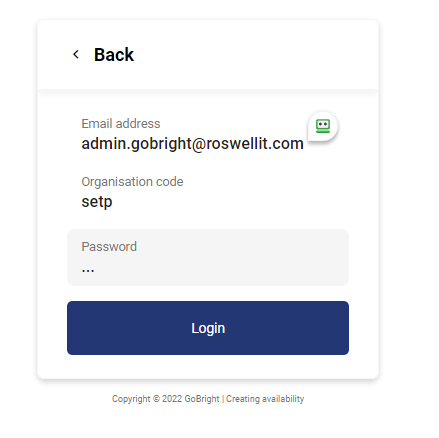
Next, we will show you how to use the portal
Creating New Bookings
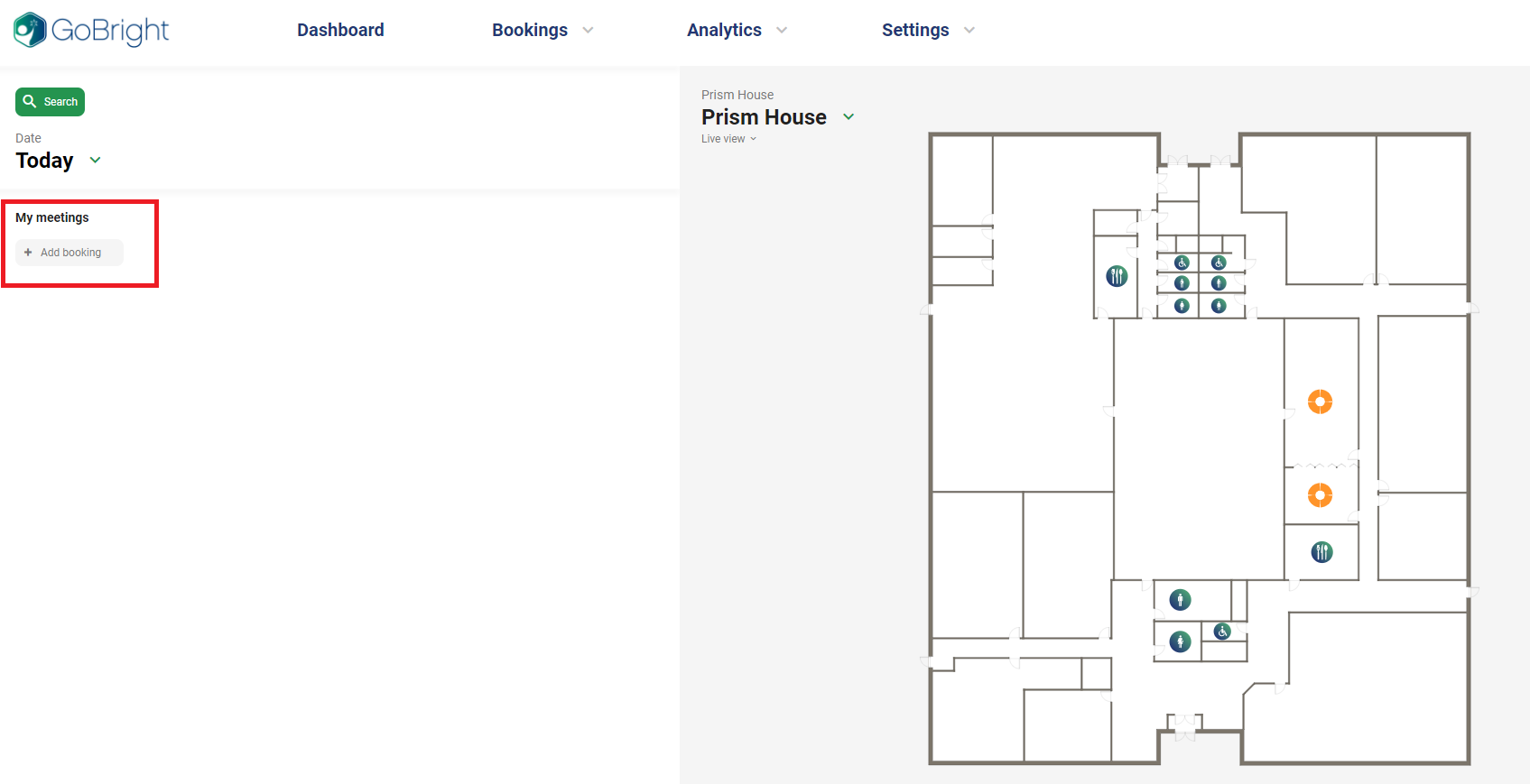
1 -Select "Add Booking"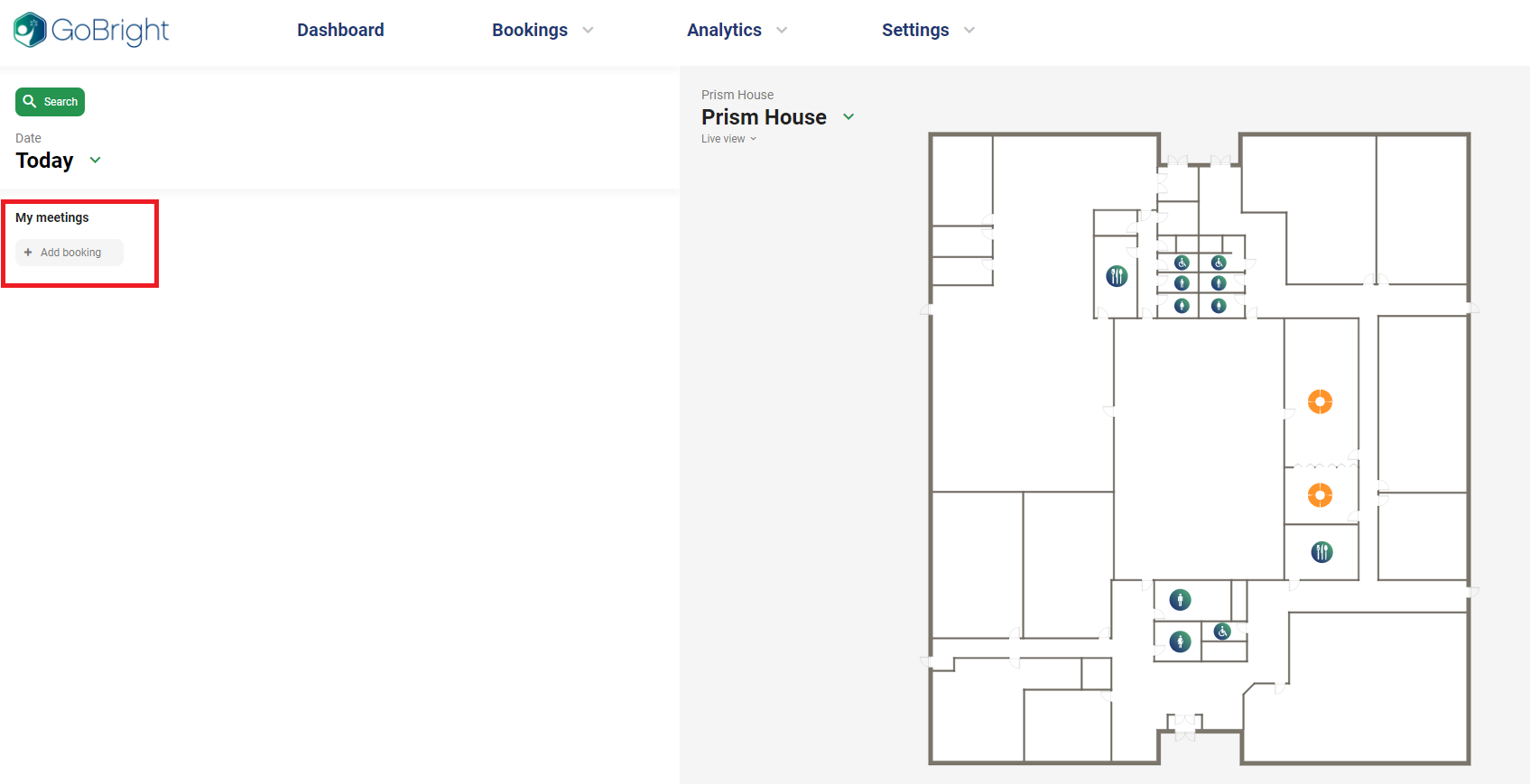
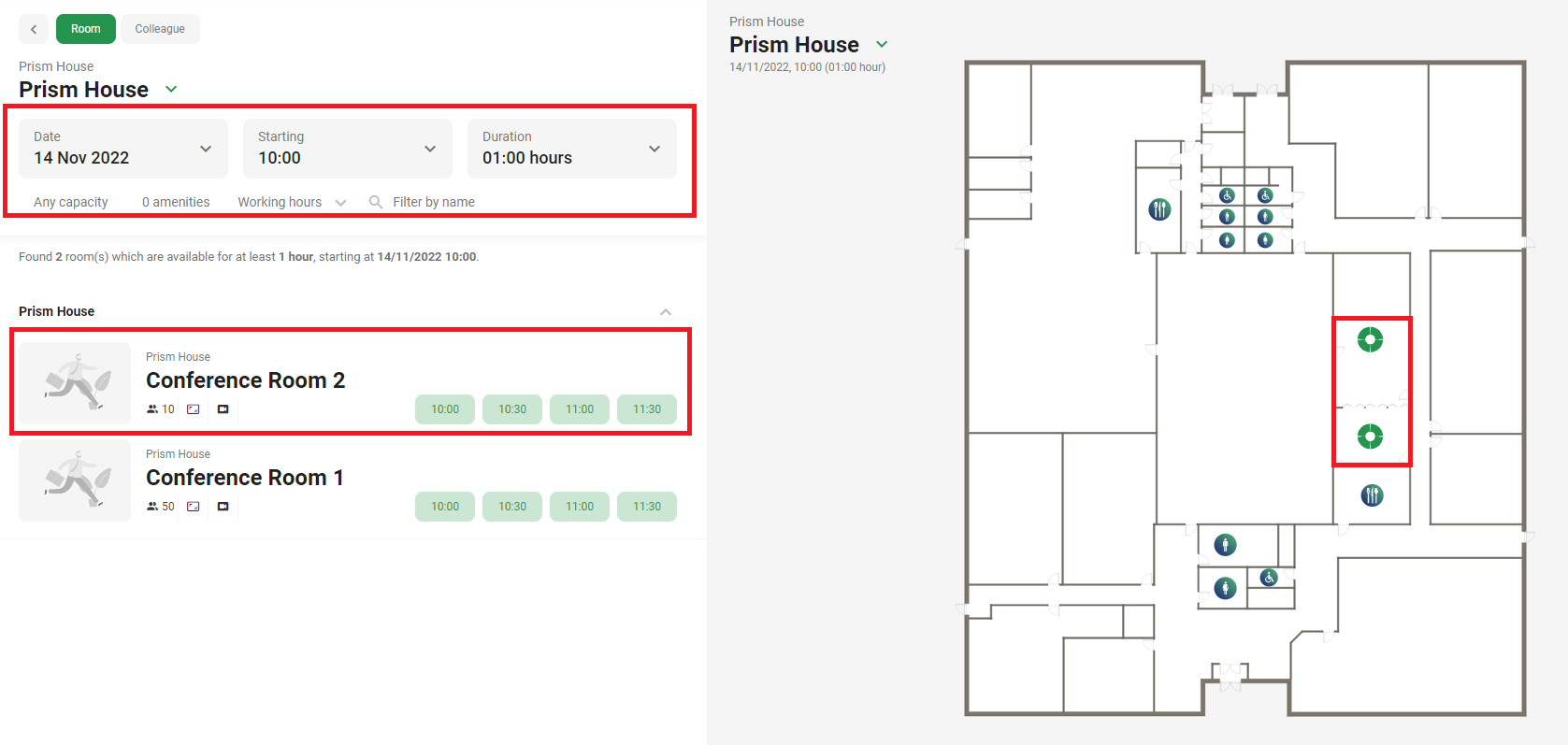
2- Search for your preferred meeting room & time/date
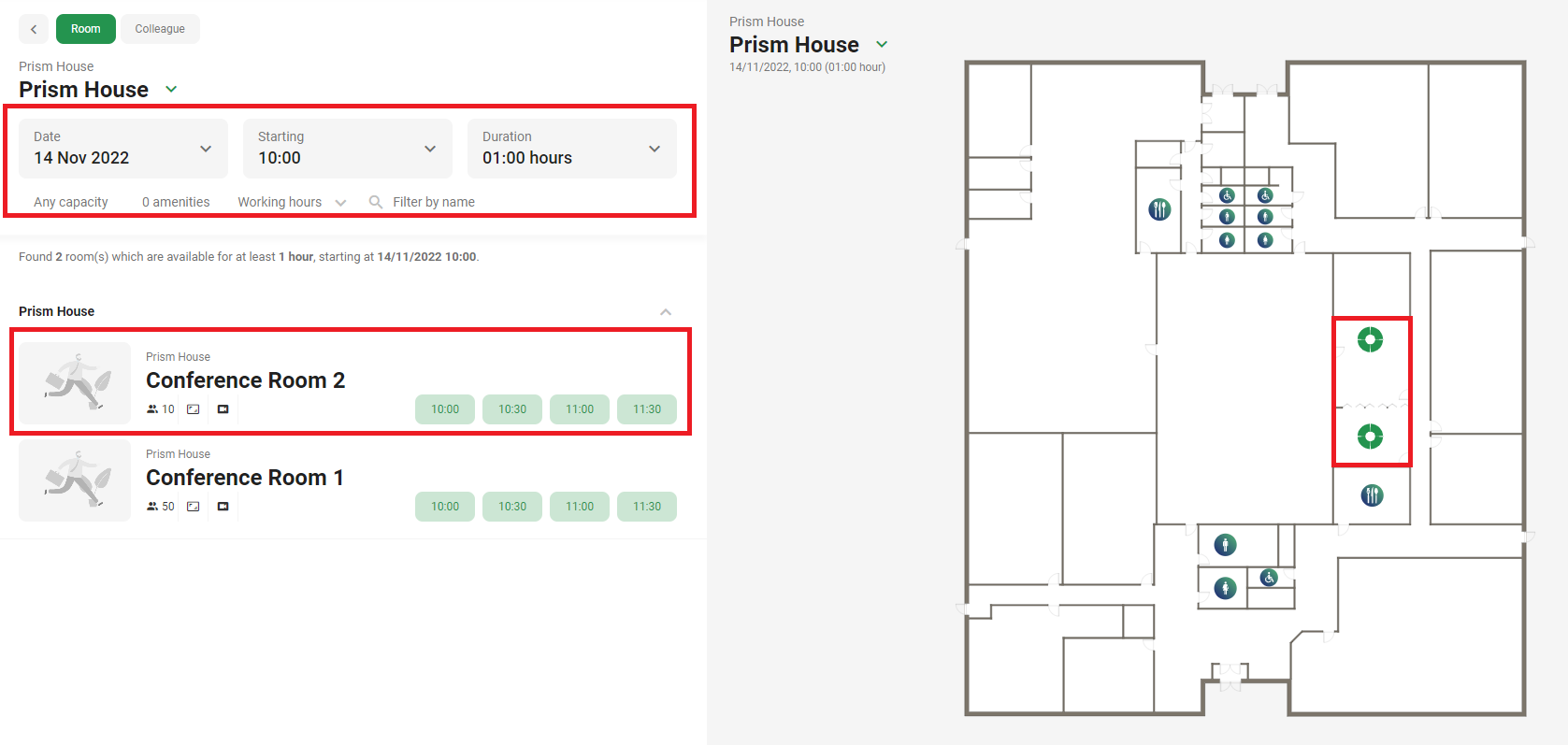
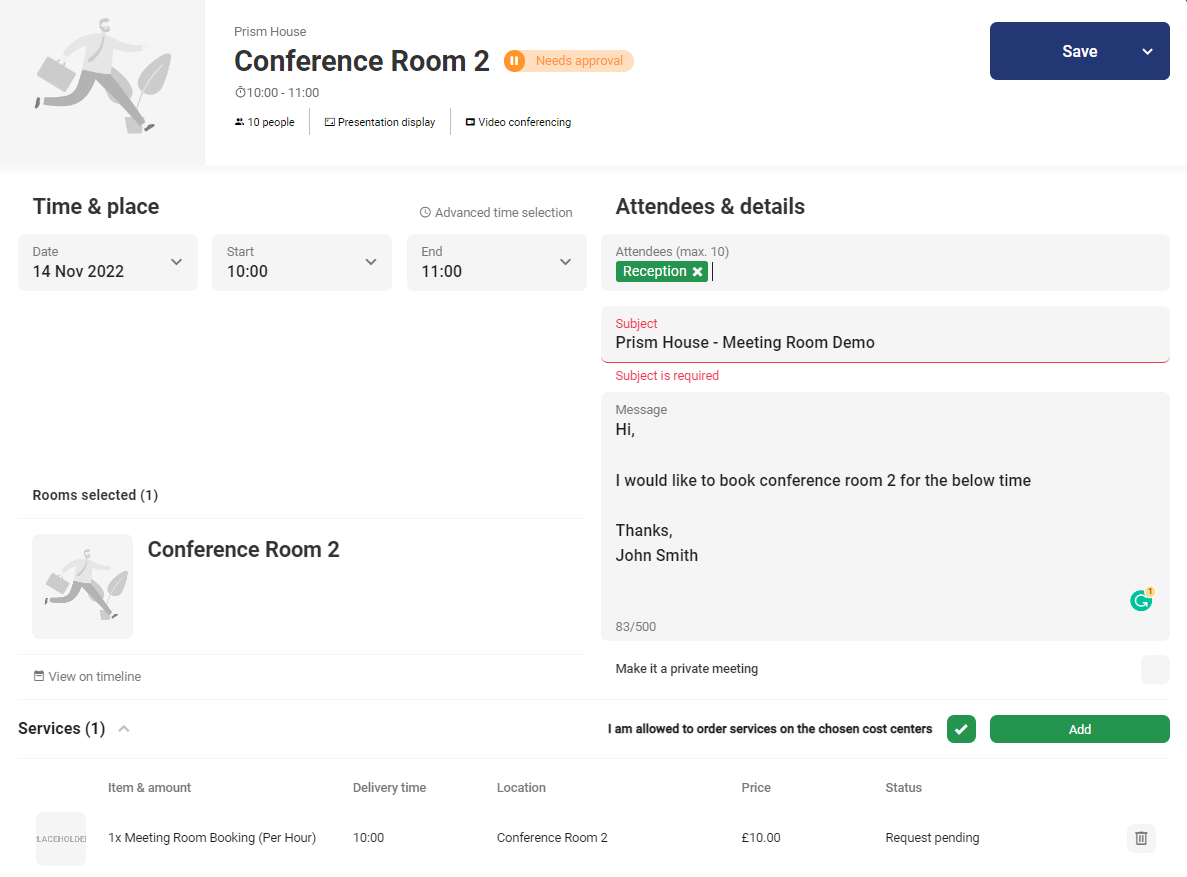
3 -Fill in the next form with details of your meeting.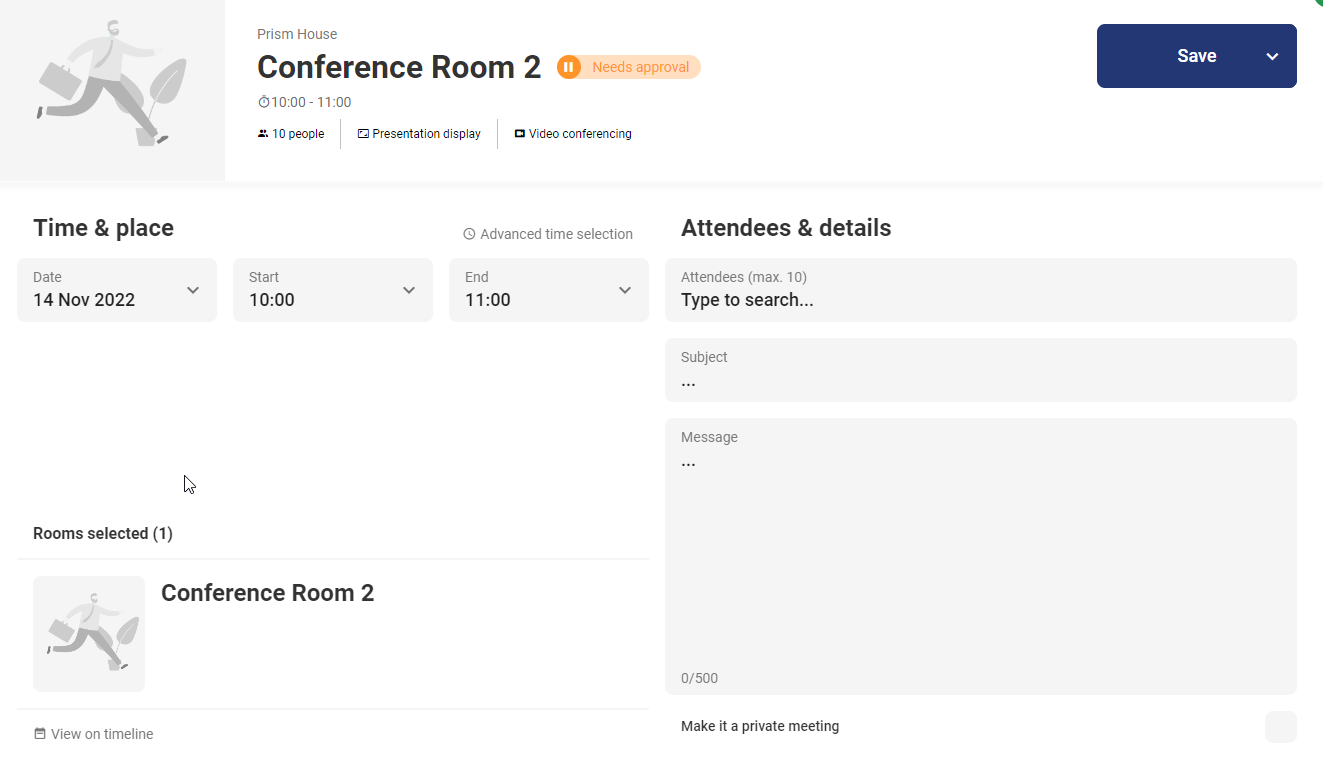
4 -Your completed request should be similar to the one below.
The subject line is the information that will appear on the screensscreen mounted outside the roomroom, so be sure to include your company name as a minimum.minimum
**Theso "Attendees"that sectionany MUSTqueries includecan Receptionbe indirected order forto the requestcorrect to be approved**
tenant
Once you have completed all of the above stepssteps, your request will be sent tofor be approvedapproval by PrismScottish House management
Enterprise
Managing Your Bookings
To manage your existing bookings please follow the below steps
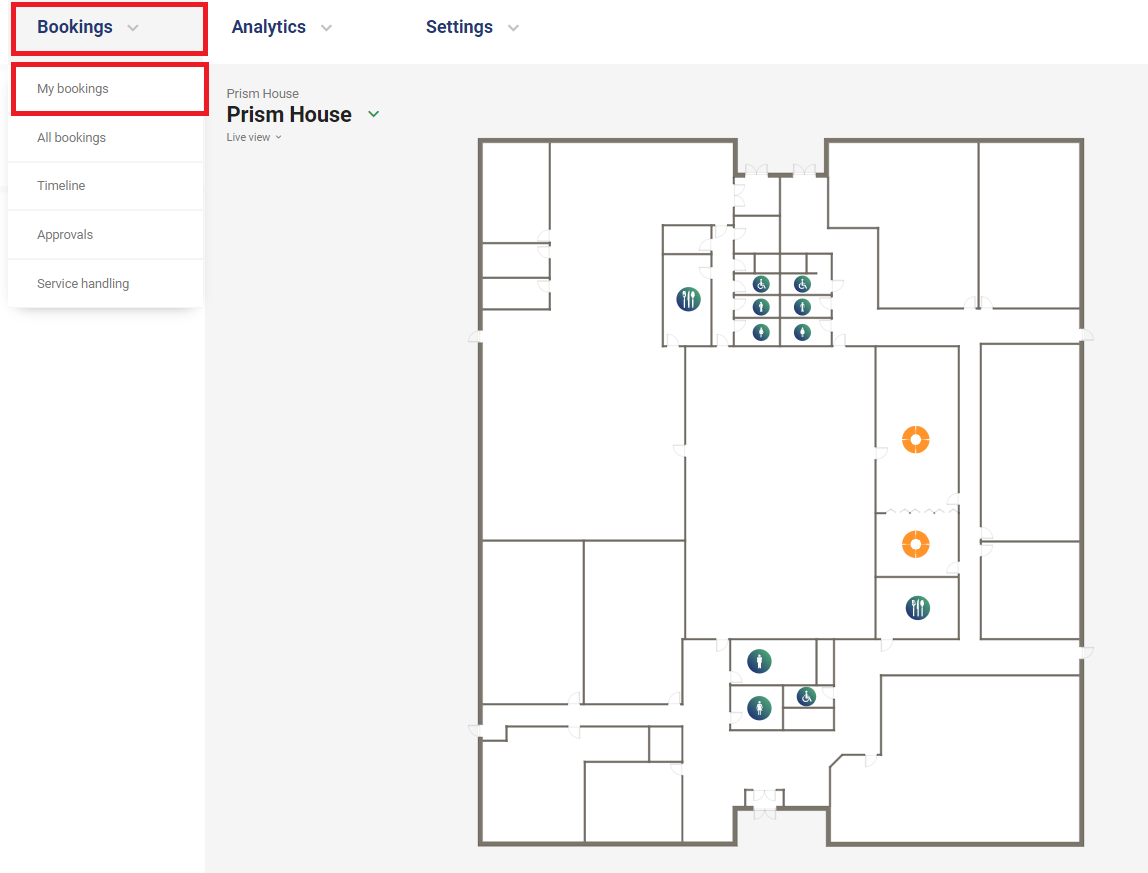
1 -Select the "Bookings" tab from the top menu then "My Bookings"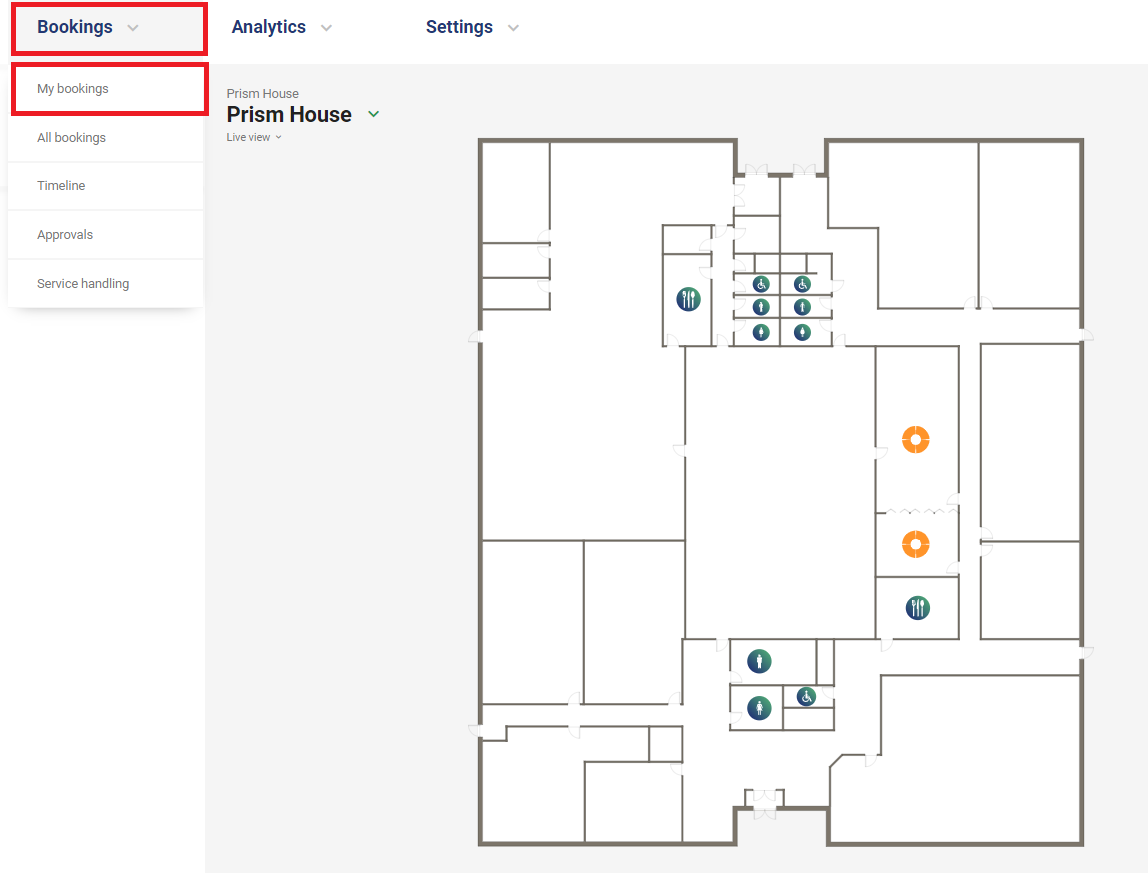
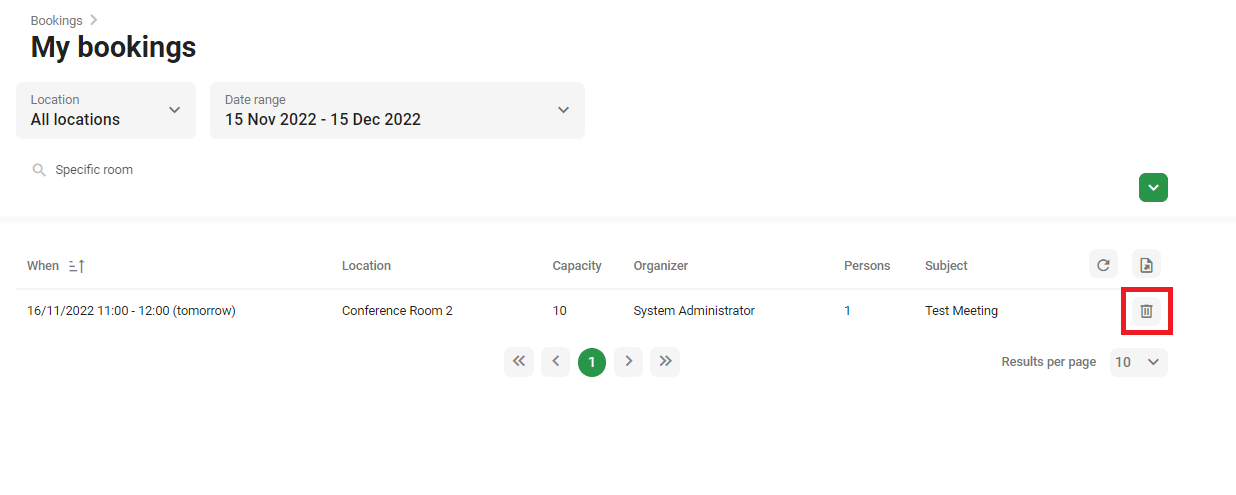
2 -From here you can delete/cancel any bookings you have created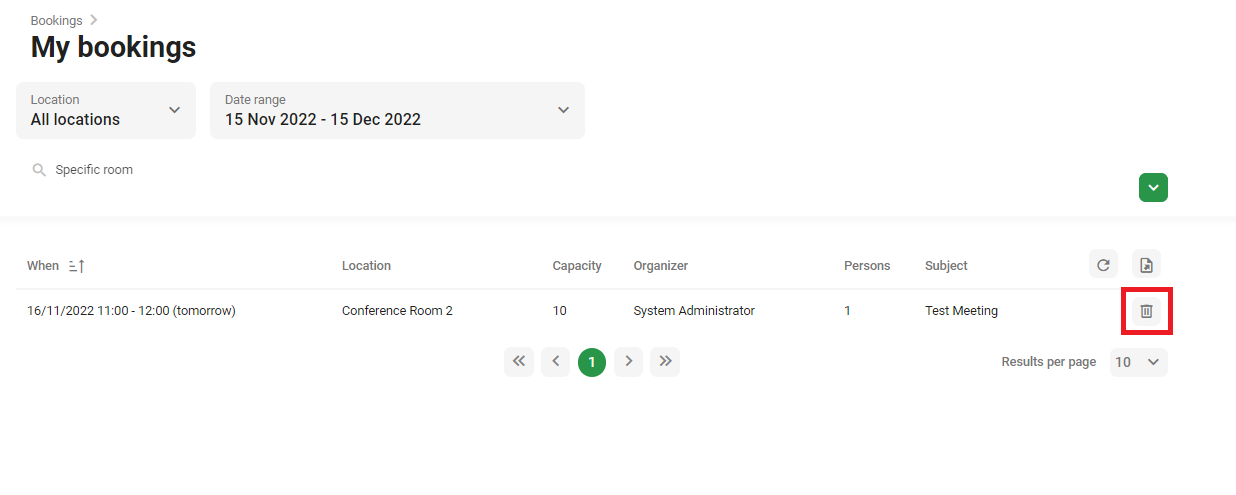
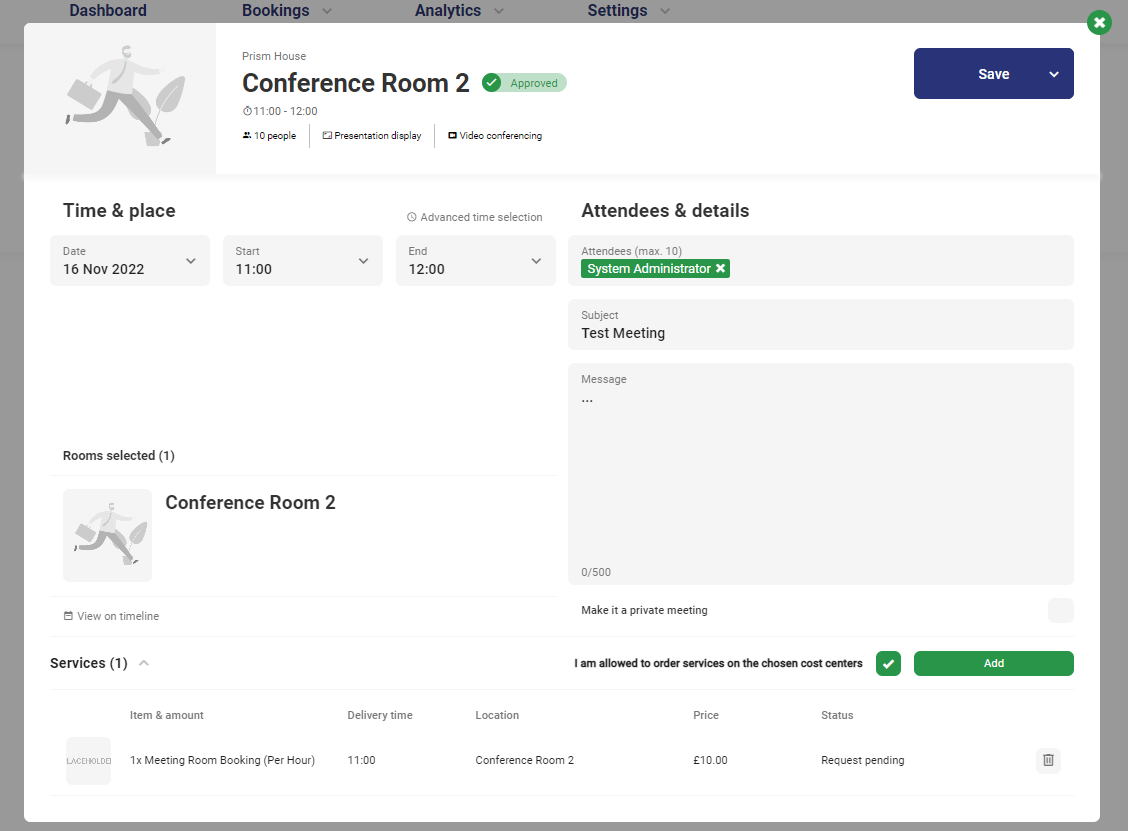
3 -You are also able to edit any current bookings by selecting the scheduled bookings.
Modifications require reapprovalapproval from Scottish Enterprise again.
Further Help
If you need any further assistance with the platform please contact Roswell IT at 01355 265 588 or at support@roswellit.com